

The short answer
- Sending a cut to a colorist, who only needs the clips and basic framing
- FCP XML
- It is free, and the only one of the four that carries basic transforms.
- Sending audio to Pro Tools or exchanging with Avid
- AAF
- It is built for that, but in our test Resolve took no position, scale, opacity or crop from it.
- Conforming one simple video track, or sending a list to a lab
- EDL
- It is readable and universal, and it carries almost nothing else.
- A pipeline built around open tools
- OTIO
- It is worth watching. It kept markers and timeline clip markers better than XML, but Resolve ignored its transforms.
- Moving a whole project to finish it in Resolve, with its effects, keyframes, multicam, bins and mix
- CrossFlow
- That is what it is for. It is paid and needs Resolve Studio.
See the difference
Each picture shows the same frame number in Premiere and in each method. We chose frames where the methods differ, so read them with the score tables below, which cover every frame.
Same file names
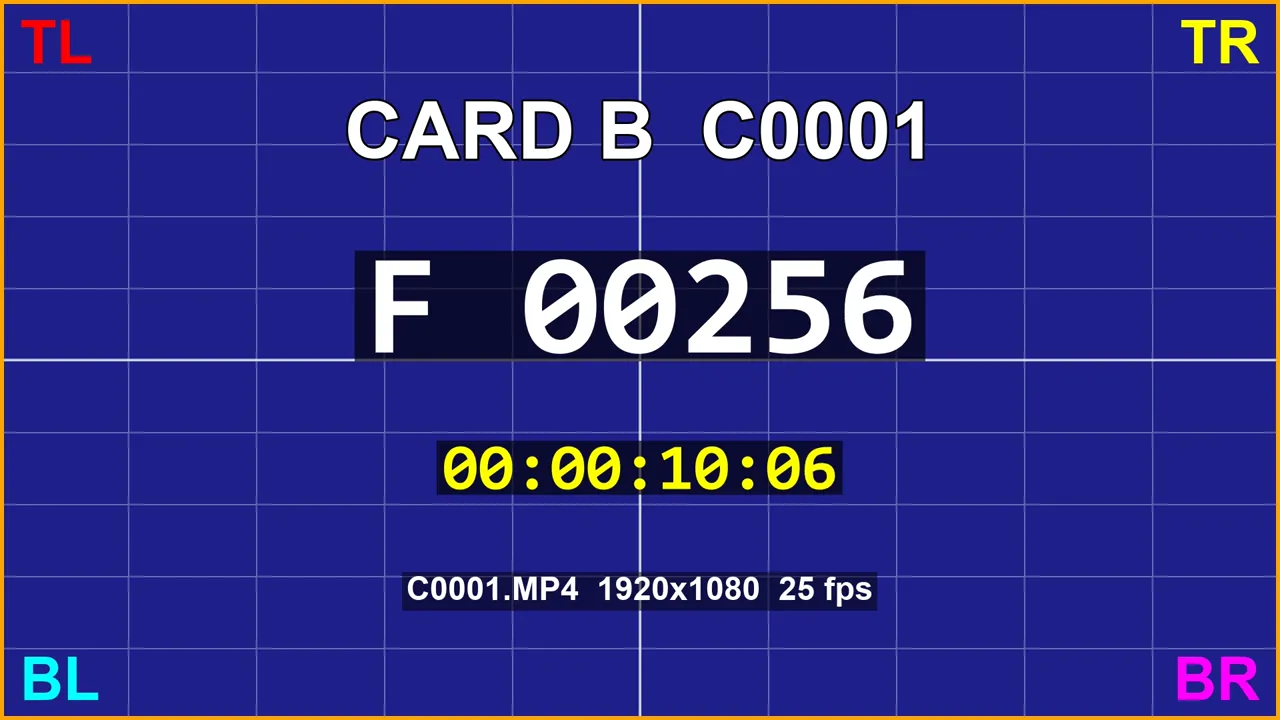 PremiereReference
Two clips named C0001.MP4, from two camera cards. Premiere shows card B. OTIO and EDL linked to card A, with no warning.
Clip sizing
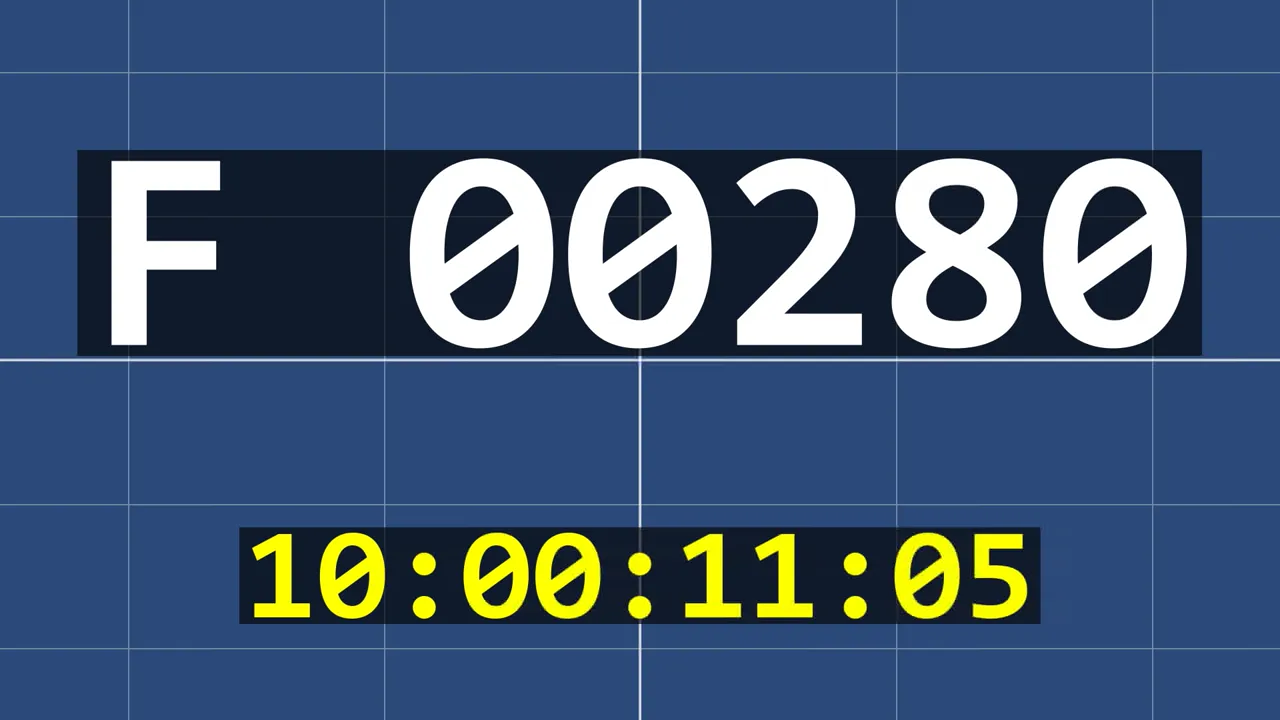 PremiereReference
A UHD clip at native size overflows the HD frame in Premiere. XML, AAF, OTIO and EDL shrink it to fit.
Transforms
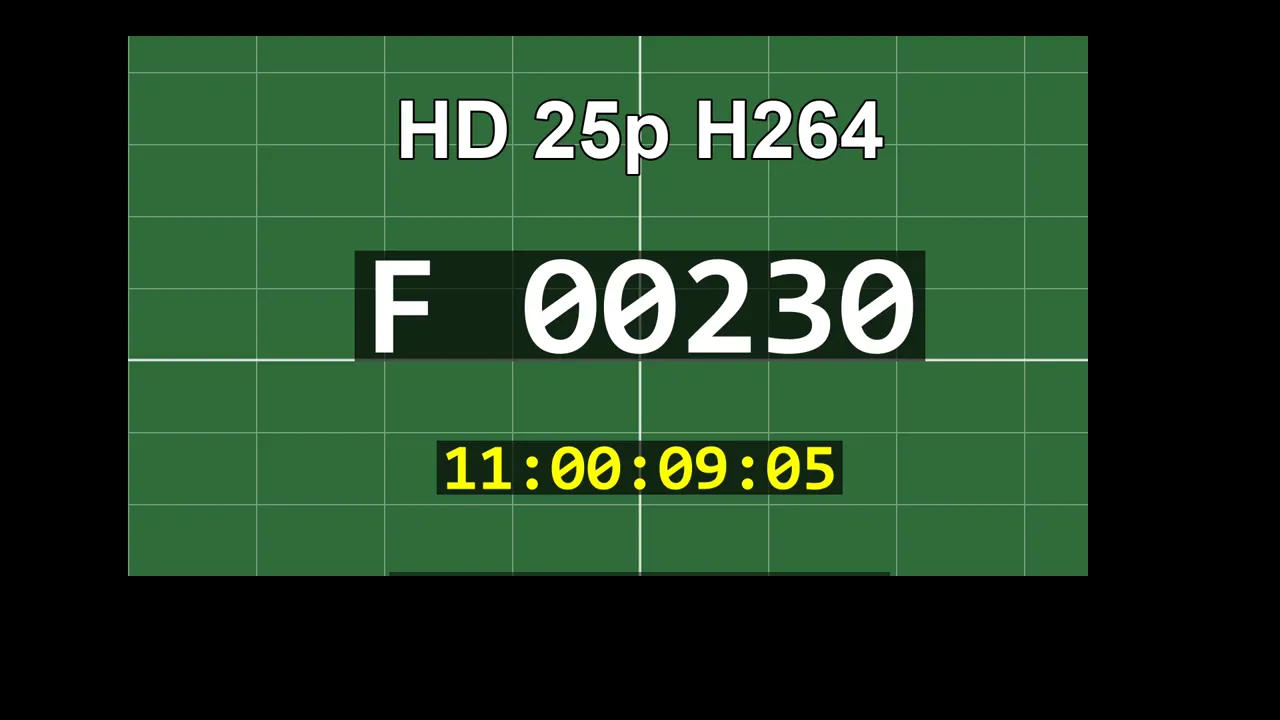 PremiereReference
A clip with a non-uniform Scale and a Crop. XML, AAF, OTIO and EDL show it plain and full frame.
Keyframes
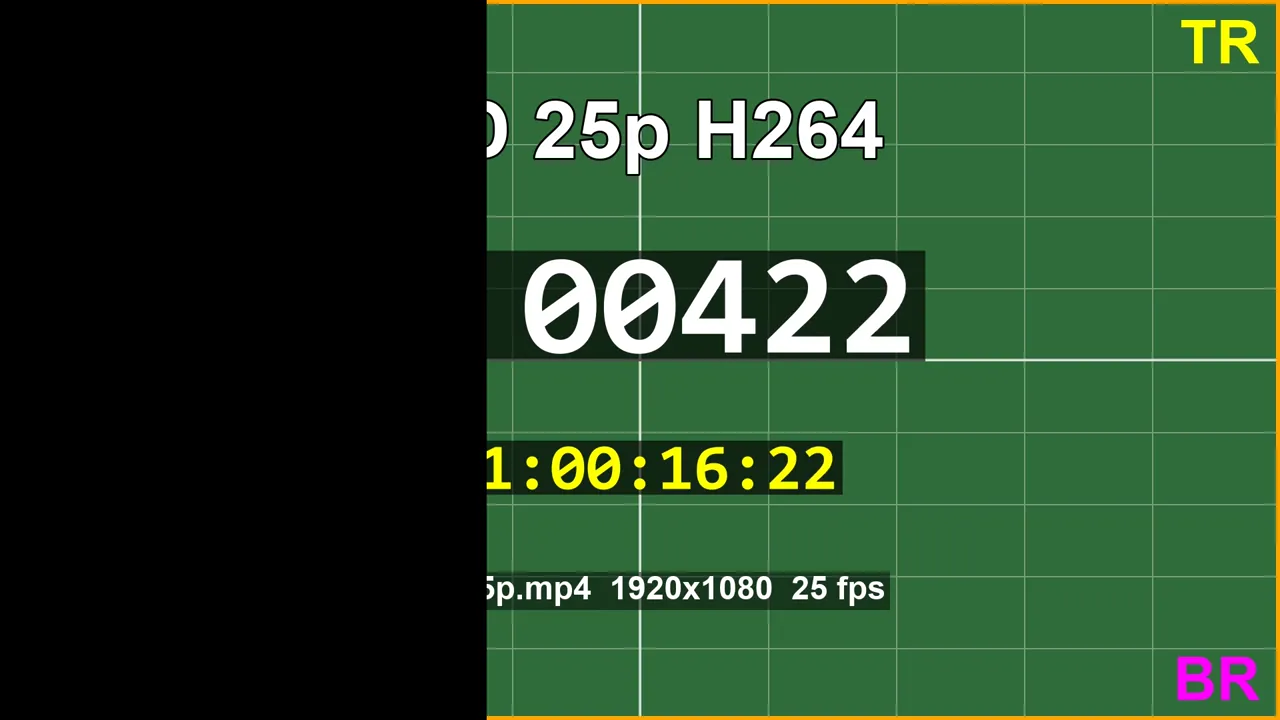 PremiereReference
Keyframes move and scale this clip, so at this moment it sits to the right with black beside it. XML, AAF, OTIO and EDL have it full frame.
Time Remapping
 PremiereReference
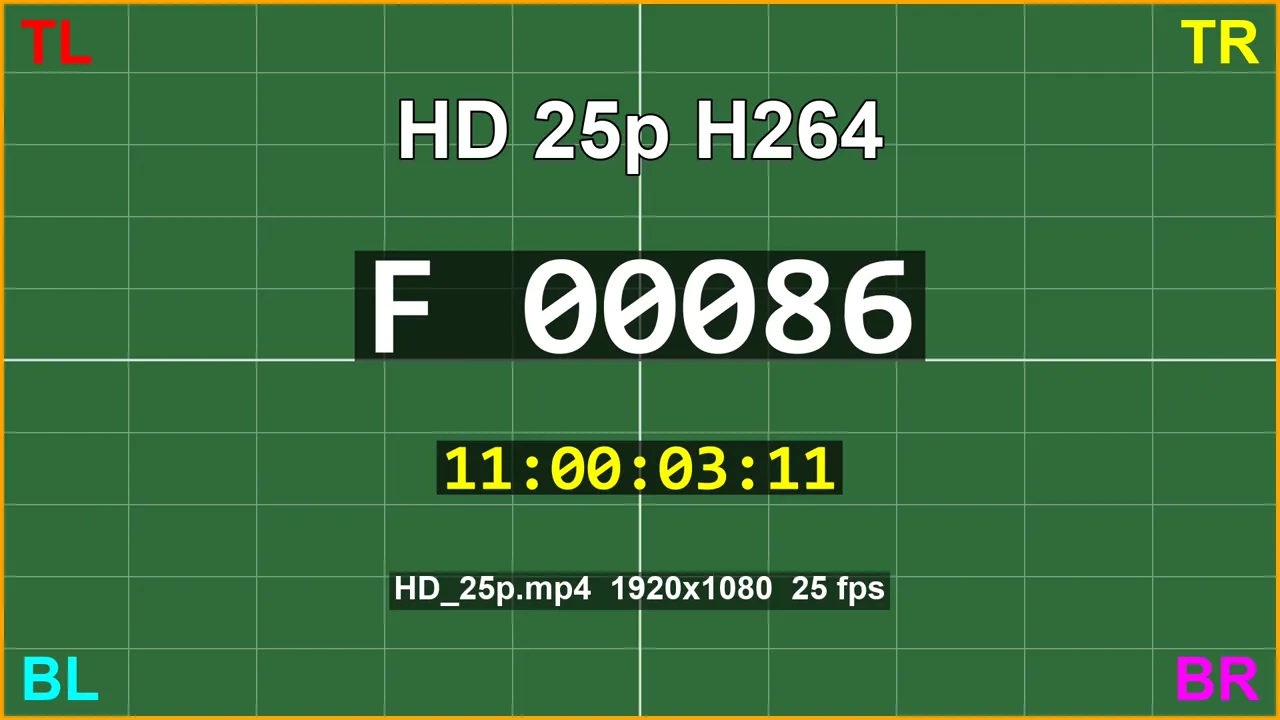
During a speed ramp, Premiere shows frame 86. XML shows frame 11, OTIO frame 0, AAF is black and EDL is Media Offline.
Transitions
 PremiereReference
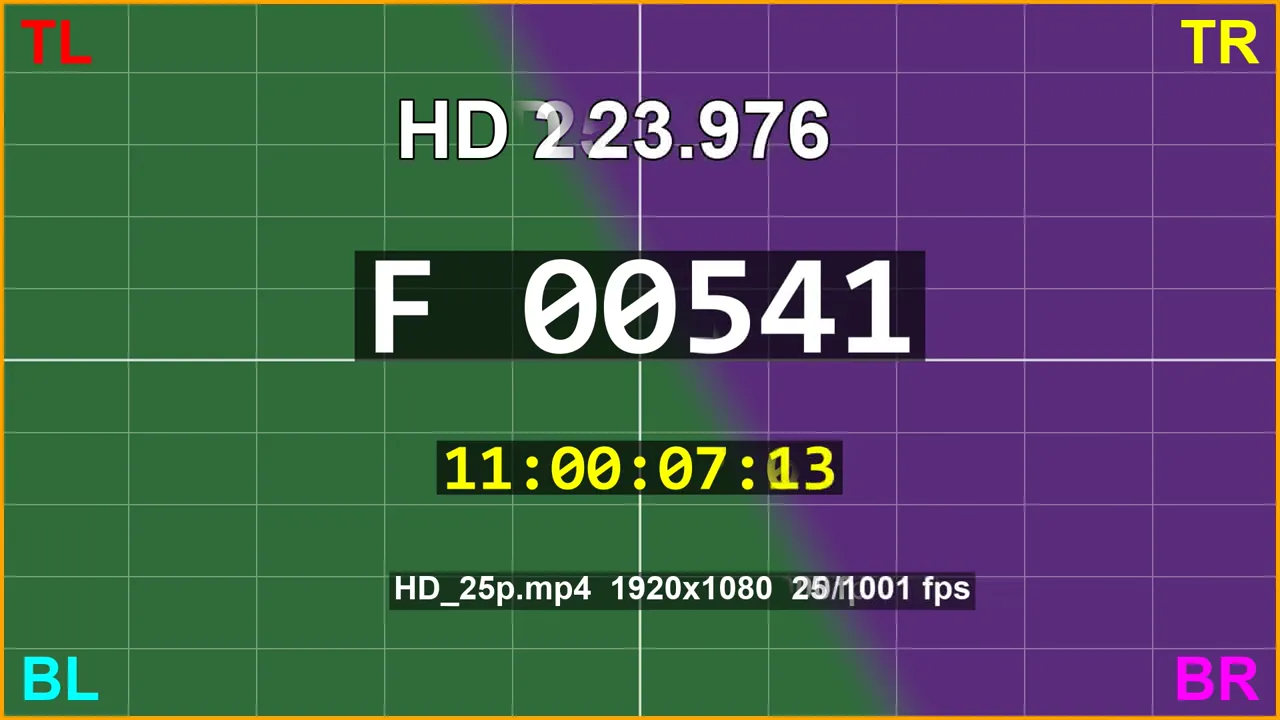
A Linear Wipe. CrossFlow has the wipe, with a softer edge than Premiere. XML, AAF and OTIO show a dissolve instead, and EDL shows Media Offline over the clip.
Nested clips
 PremiereReference
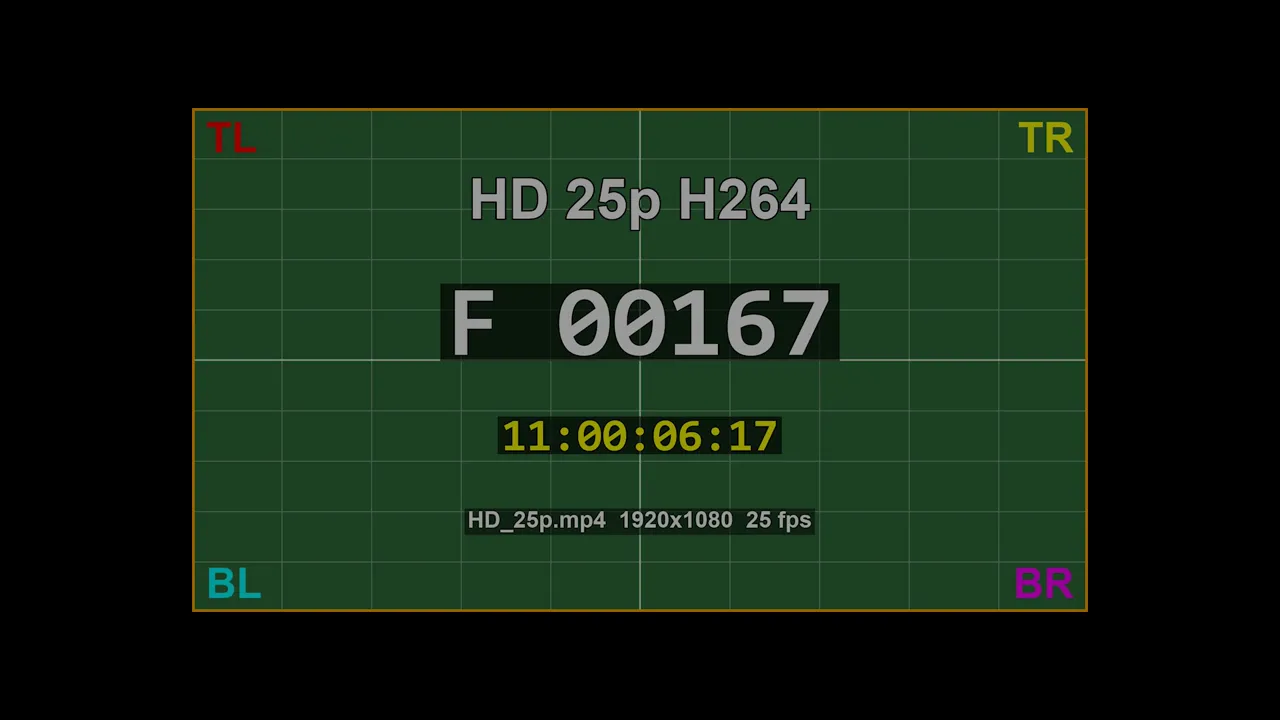
A nested clip, scaled and faded. XML and OTIO show it full frame, the AAF timeline is empty, and EDL links to the wrong clip.
Multicam
 PremiereReference
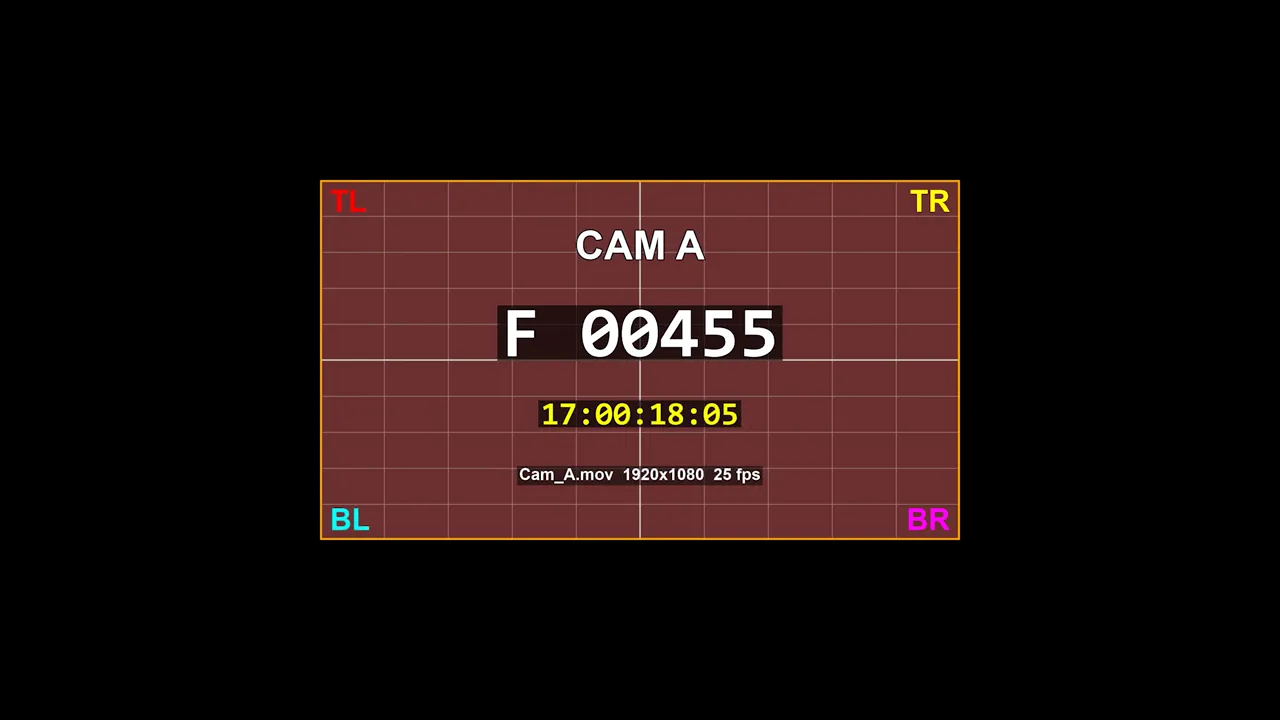
The XML timeline is empty. AAF, OTIO and EDL show the angle full frame, without the scale it has in Premiere.
Masks
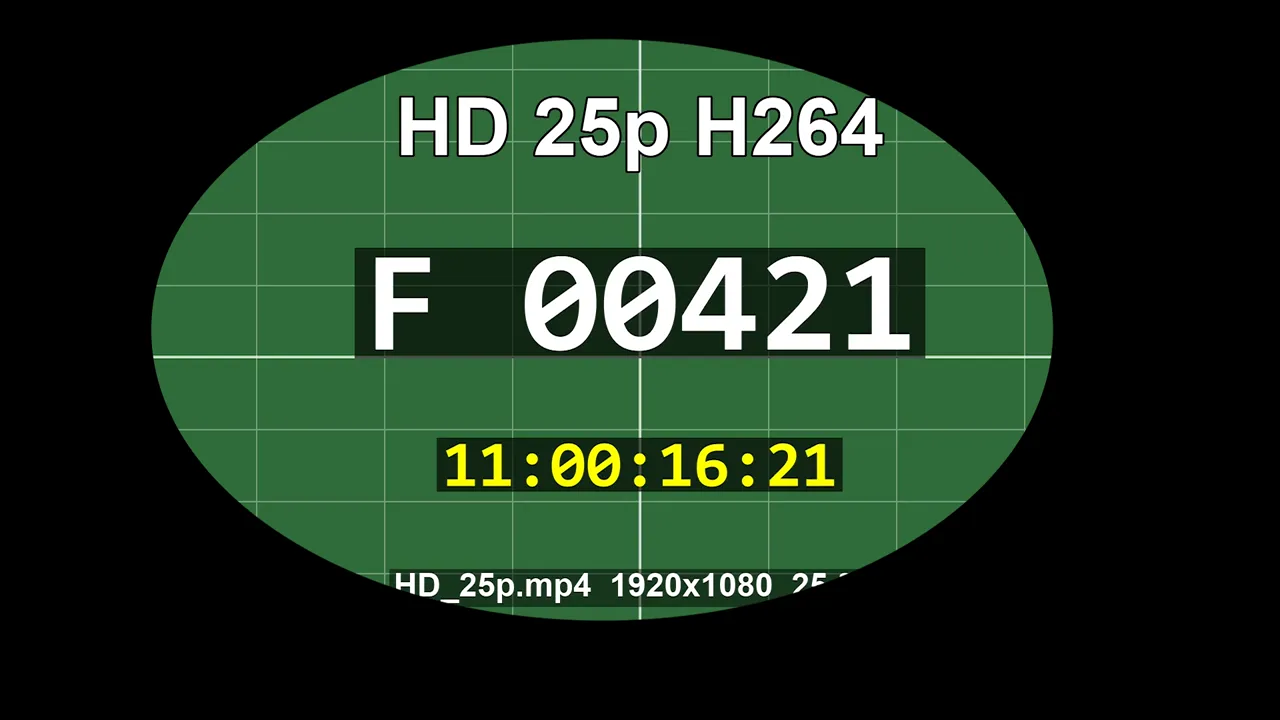 PremiereReference
A clip with an oval mask. XML, AAF and OTIO show Media Offline, and EDL shows the clip without its mask.
Metadata
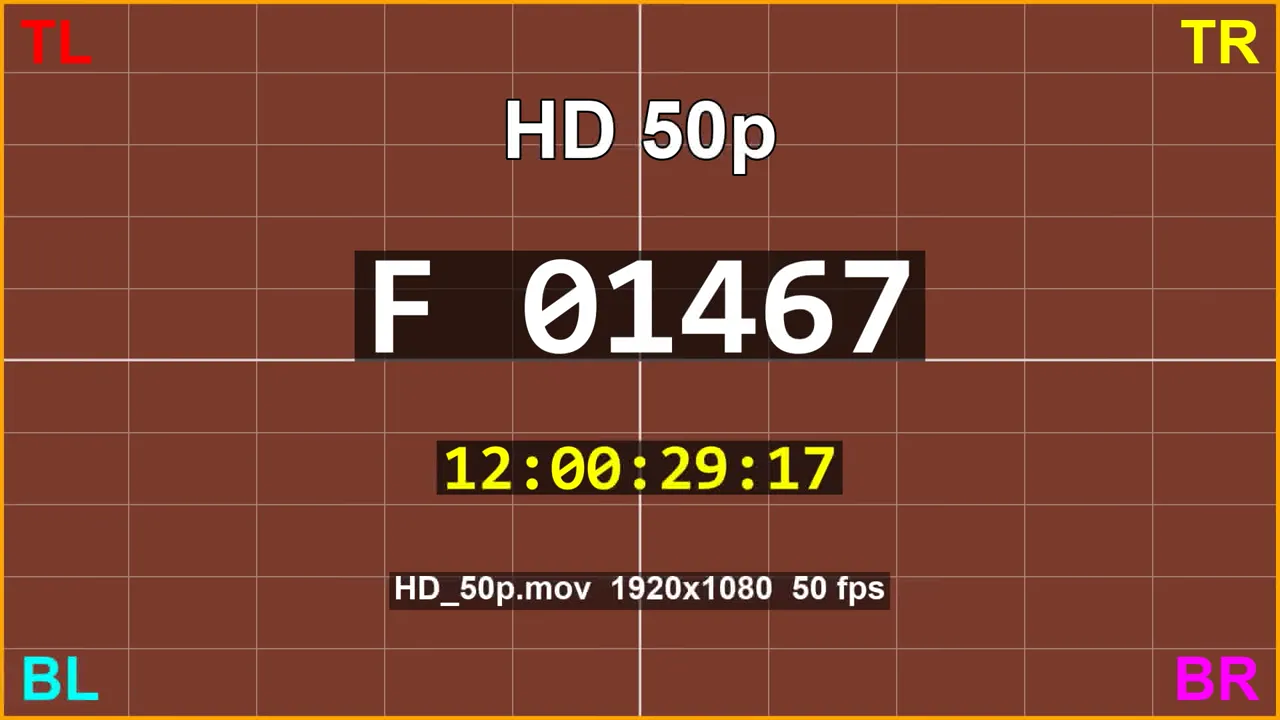 PremiereReference
A 50 fps clip. Premiere shows frame 1467, XML and AAF show frame 1498, OTIO and EDL show Media Offline.
Select a frame to compare it with Premiere, with a line you can drag.
What we tested
- Premiere Pro 26.5.2, DaVinci Resolve Studio 21.1.1 and CrossFlow 1.1.1 on Windows.
- One project of about 20 sequences, each testing one family of features: cuts, sizing, transforms, keyframes, speed, transitions, nesting, multicam, effects, audio, metadata and frame rates.
- Every test clip shows its own frame number, timecode and file name, so a wrong frame is visible at a glance.
- Each timeline imported into Resolve was rendered with the same settings, then compared with Premiere's own export, frame by frame. A frame at 35 dB PSNR or more counts as a match. Audio was compared per channel, in 40 ms windows.
- Resolve projects used default settings, with the project set to 25 fps, and with all media already in the Media Pool.
This is one synthetic project built to stress each feature. A score tells you how much of that sequence survived, not how your own project will behave: a real project using only cuts will do far better than the transform row suggests.
Results: picture
Percentage of frames matching Premiere's own render. "Empty" means Resolve imported the timeline with nothing on it. Select a sequence name to see one of its frames in each method.
| Sequence | CrossFlow | XML | AAF | OTIO | EDL |
|---|---|---|---|---|---|
| 100 | 68 | 79 | 80 | 37 | |
| 100 | 58 | 54 | 54 | 54 | |
| 100 | 53 | 0 | 0 | 0 | |
| 100 | 45 | 26 | 26 | 26 | |
| 100 | 31 | 27 | 24 | 13 | |
| 75 | 53 | 74 | 74 | 46 | |
| 94 | 54 | Empty | 80 | 0 | |
| 100 | Empty | 43 | 1 | 1 | |
| 91 | 9 | 0 | 0 | 8 | |
| 100 | 84 | 72 | 71 | 83 | |
| 25p sequence | 100 | 63 | 100 | 100 | 100 |
| 23.976 sequence | 100 | 74 | 100 | 4 | 47 |
| 29.97 drop frame sequence | 100 | 100 | 100 | 3 | 20 |
For CrossFlow, Effects is 91 when you choose to transcode clips to keep their Lumetri grade, and 73 with the default option, which drops the grade with a warning.
The 35 dB threshold is generous during transitions, where a visible difference can still pass. At 40 dB, Transitions drops to 58 for CrossFlow, AAF and OTIO, and most other rows barely move.
Results: audio
Percentage of 40 ms windows within 1 dB of Premiere.
| Sequence | CrossFlow | XML | AAF | OTIO | EDL |
|---|---|---|---|---|---|
| Stereo Mix, with track automation | 73 | 4 | 10 | 4 | 0 |
| Mono Mix | 85 | 6 | 6 | 0 | Refused |
| Mono clips panned | 89 | 71 | 29 | 26 | Refused |
| Track solo and mute | 85 | 20 | 20 | 85 | 20 |
Resolve refused the EDLs that have no video track. Only CrossFlow rebuilt the 5.1 and 8-channel Mix formats: the other methods rendered these sequences in stereo, so their scores cannot be compared. On the 5.1 sequence CrossFlow scores only 5 %, because surround panners are not transferred.
What each format does, and where it fails
Premiere to Resolve with FCP XML
The usual route to a colorist. Export with File > Export > Final Cut Pro XML, import with File > Import > Timeline. Adobe warns that "only a few Premiere effects and features will transfer", and that "audio pan, gain, and level changes may not transfer accurately".
What came across: cuts, static Position, uniform Scale, Rotation, Anchor Point and Opacity, Opacity fades, straight-line Position keyframes, and clip pan and level (some level values were wrong).
What we lost:
- Multicam: Premiere skips the sequence, so the timeline arrives empty. Its Translation Results file says so. Flatten first if you need the cut, and you lose the angles.
- Clip sizing: Premiere writes a scale value and Resolve applies it on top of its own fit to frame. A UHD clip in an HD sequence arrived at half the frame, and a small SD clip arrived enlarged far beyond it. Resolve's input scaling settings and "Use sizing information" are the things to try, but we did not test other combinations.
- Curved keyframes, Crop, non-uniform Scale and Flip: curves come across approximately, the rest not at all. The Translation Results file does not mention Crop or sizing, so do not rely on it as a complete list.
- Time Remapping: it does arrive as variable speed, as Resolve's manual says, but the frames are wrong for 37 to 42 % of the ramp, and it is lost when combined with reverse.
- Transitions: everything except Cross Dissolve becomes a Cross Dissolve.
- Audio structure: stereo pairs split into mono tracks, 18 of them for our 8-track sequence, and the audio track mixer does not come across.
- Effects, grades, titles, adjustment layers: gone, or Media Offline in the timeline.
- A disabled nested clip comes back enabled, with no warning.
Two widely reported problems did not appear. A 25 fps sequence was read at 25 fps: Adobe's release notes list the fix for the old 50 fps bug in version 25.2. Cross Dissolves really dissolved: a report from April 2026 said they behaved as cuts, and Adobe has since marked it as fixed.
Premiere to Resolve with AAF
Export with File > Export > AAF. Adobe documents it for Avid Media Composer and Pro Tools, not for Resolve.
What came across: cuts, track types (mono, stereo, 5.1), frame rates (all three of our sequences were right), reverse speed, and clip level (some values were wrong).
What we lost:
- Every transform: Position, Scale, Opacity, Crop and the rest. Resolve's manual describes transform import from AAF for files from Media Composer or Symphony.
- Nested sequences: the timeline arrived empty.
- Multicam: flattened, and only 43 % of the frames were right.
- Time Remapping, clip pan, markers, clip colors, bins.
- Disabled clips come back enabled.
Premiere to Resolve with EDL
Export with File > Export > EDL. Import with File > Import > Timeline, with the media already in the Media Pool.
An EDL carries one video track, cuts and basic wipes. Linear speed changes do come across, as Resolve's manual says, though reverse does not. Adobe's help also lists frame holds among what translates well, but Frame Hold was lost in our test. Everything else is outside the format.
The trap is conforming. Two clips named C0001.MP4 from different camera cards both linked to card A, with no warning: the timeline looks complete and shows the wrong shot. Timelines at 23.976 and 29.97 were also created at the project's 25 fps.
Premiere to Resolve with OTIO (OpenTimelineIO)
An open standard, in Premiere since version 26.0 (January 2026) and documented in Resolve's manual. We used Premiere 26.5.2.
What came across: cuts, linear speed, Frame Hold, nested sequences, disabled clips, sequence markers and clip markers, and track solo and mute.
What we lost:
- Transforms: the
.otiofile does contain Position and Scale, but Resolve did not apply them on import. - Frame rates: 23.976 and 29.97 sequences became 25 fps timelines in a 25 fps project. Check this first if your project mixes rates.
- Same-name clips: like EDL, the two
C0001.MP4both linked to card A. - Multicam: 1 %.
- Transitions: the file keeps their names, and Resolve turns them into Cross Dissolves.
- Our import also needed the media in the Media Pool beforehand.
Premiere to Resolve with CrossFlow
CrossFlow does not go through an interchange file. It reads the .prproj itself and writes the Resolve project directly. What Resolve cannot reproduce is either rendered through Adobe Media Encoder or listed in a per-clip report.
What came across: all of the above, plus Crop, Flip, curved keyframes, Time Remapping with its curve, true multicam, Warp Stabilizer as Resolve's stabilizer, clip colors, bins, proxies, Interpret Footage, and the audio track mixer with its automation. The documentation lists everything CrossFlow transfers.
Where it fell short in our test:
- Transitions, 75 %: Push loses its bounce, Iris Round cannot be one-sided, Morph Cut becomes a cut, and fade curves differ, as they do with every other method.
- Effects: those Resolve has no equivalent for become rendered files, so they can no longer be adjusted in Resolve. A masked clip scored 77 %.
- Audio: not exact. Bezier curves on deep track fades drift by 1.5 to 3 dB, Constant Power fades end louder than in Premiere, and surround panners are not transferred.
- Nested clips: one that runs past the end of its sequence shows Resolve's last frame instead of black. CrossFlow warns about it.
What it costs: $79 once, with a free trial that converts the first 10 clips of every sequence. It needs DaVinci Resolve Studio, not the free version, version 20 or later.
Feature by feature
| Feature | CrossFlow | XML | AAF | OTIO | EDL |
|---|---|---|---|---|---|
| Static Position, Scale, Rotation, Opacity | Identical | Identical | Lost | Lost | Lost |
| Crop, Flip, non-uniform Scale | Identical | Lost | Lost | Lost | Lost |
| Curved keyframes | Identical | Partial | Lost | Lost | Lost |
| Reverse speed | Identical | Partial | Identical | Lost | Lost |
| Time Remapping | Identical | Partial | Lost | Lost | Lost |
| Multicam | True multicam | Empty | Flattened | Lost | Lost |
| Nested sequence | Identical | Partial | Empty | Identical | Lost |
| Lumetri | Optional render | Lost | Lost | Lost | Lost |
| Warp Stabilizer | Identical | Lost | Lost | Lost | Lost |
| Sequence markers | Identical | Partial | Lost | Partial | Lost |
| Clip colors in the timeline | Identical | Lost | Lost | Lost | Lost |
| Bins | Identical | Lost | Lost | Lost | Lost |
| Track mixer and automation | Transferred | Wrong levels | Wrong levels | Solo and mute only | Wrong levels |
Which one should you use?
What does your project use?
- Do you only need the clips in order? Try XML, and check any clip that is not at its native size.
- Do you use multicam, Time Remapping, Crop or nested clips with transforms? Plan to rebuild them after an XML import, or flatten them first.
- Are you staying in Resolve to finish the project, so that the edit, the keyframes, the bins and the mix all have to survive? This is the case an interchange format was never built for, and where CrossFlow earns its price. Try it free on your own project: the first 10 clips of every sequence are converted, so you can compare before paying.
Whichever method you use, render a reference from Premiere first and compare it with Resolve before you start working.
Frequently asked questions
Can DaVinci Resolve open a Premiere Pro project directly?
No. Resolve does not read the .prproj file. You export an interchange file from Premiere (XML, AAF, EDL or OTIO), then bring it in with File > Import > Timeline, usually with the media already in the Media Pool. CrossFlow takes a different route: it reads the .prproj itself and writes a Resolve project.
What is the best format to export from Premiere Pro to DaVinci Resolve?
For a cut with basic framing, FCP XML: it was the only free format in our test that carried Position, Scale, Rotation and Opacity. For audio post-production, AAF. For a pipeline built on open tools, OTIO. EDL only suits one simple video track.
Does Time Remapping survive the move to Resolve?
Partly, and only through XML. It arrives as variable speed, but the frames were wrong for 37 to 42 % of the ramp, and it is lost when combined with reverse. AAF, OTIO and EDL lost it. CrossFlow transferred it with its curve.
Why is my multicam sequence empty after an XML import?
Premiere skips multicam sequences when it writes the XML, and says so in its Translation Results file. If you flatten the sequence first you keep the cut, but you lose the angles.
Why are my clips the wrong size after an XML import?
Premiere writes a scale value and Resolve applies it on top of its own fit to frame. In our test a UHD clip in an HD sequence arrived at half the frame. Resolve's input scaling settings and "Use sizing information" are the things to try, though we did not test other combinations.
Why does Resolve show the wrong clip after an EDL or OTIO import?
Clips with the same file name can be linked to the wrong source. Our two C0001.MP4 files from different camera cards both linked to card A, with no warning. Check timelines built from camera cards that restart their numbering.
Do Lumetri grades transfer from Premiere to Resolve?
Not through XML, AAF, EDL or OTIO. With CrossFlow they can be kept by transcoding the clip through Adobe Media Encoder, which bakes the grade into a rendered file. By default CrossFlow drops the grade and warns you.
Does the audio mix transfer to Resolve?
The audio track mixer did not come across through XML, AAF or EDL, and OTIO only kept track solo and mute. CrossFlow transferred the mixer and its automation, though not exactly: see the audio scores above.
Does this work with the free version of DaVinci Resolve?
We tested with Resolve Studio only. CrossFlow needs Studio, version 20 or later.
Sources
Results are our own measurements unless linked here.
- Blackmagic Design, DaVinci Resolve 20 Reference Manual, "Importing Effects when Conforming Edits" (speed effects, transforms, AAF from Media Composer or Symphony), "Conforming OTIO Files", import options.
- Adobe Community: 25 fps timeline read as 50 fps.
- Adobe Community: XML transition ratio values, reply of September 28, 2026: "has been fixed".
- Adobe Help: Export as Final Cut Pro XML, Export AAF, Export EDL, release notes.